

How To Dual-Boot Windows & Any Linux OS (With Pictures).

Here, I will be using Windows 7 & Xubuntu 13.04 for pictorial explanation.
Considering, Windows 7 is pre-installed; we'll further move for the manual installation process.
- Download any Linux ISO & burn it on DVD or make Pendrive bootable using <a href="https://www.linuxliveusb.com/" target="_blank" rel="nofollow noopener noreferrer">LinuxLive USB Creator</a> or #-Link-Snipped-#. You can use any, but I will recommend Unetbootin though.
- After creating Bootable DVD or Pendrive, insert it on Disk-drive or USB slot respectively.Restart the computer & the Linux Live image will load. Two options will be available for you : Try "OS_Name" or Install "OS_name" as shown in image below :
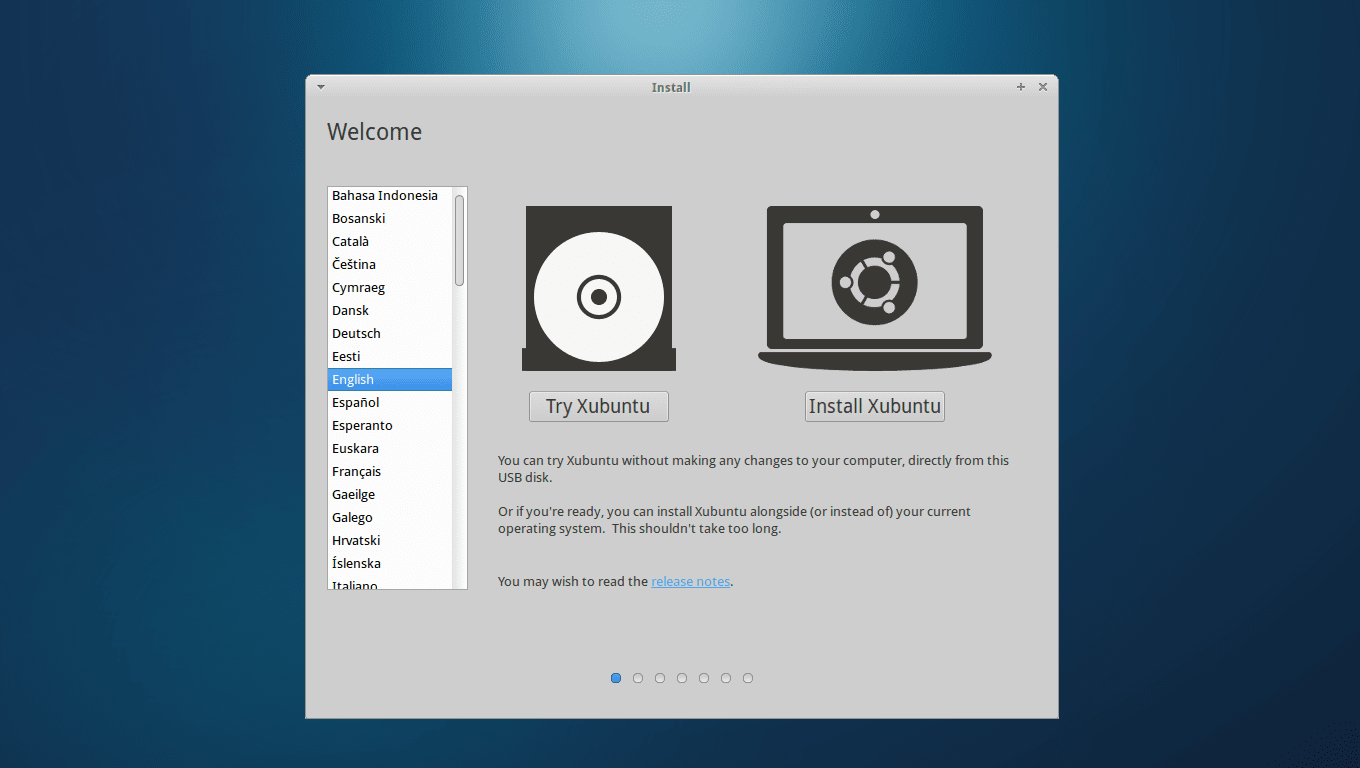
- Now Click on "Install OS_name". Below shown figure will be obtained. No need to tick on "Download updates while installing" & "install third part softwares".
- I have found that, while downloading updates while installing, Flash doesn't works properly & crashes. So I recommend you, not to!
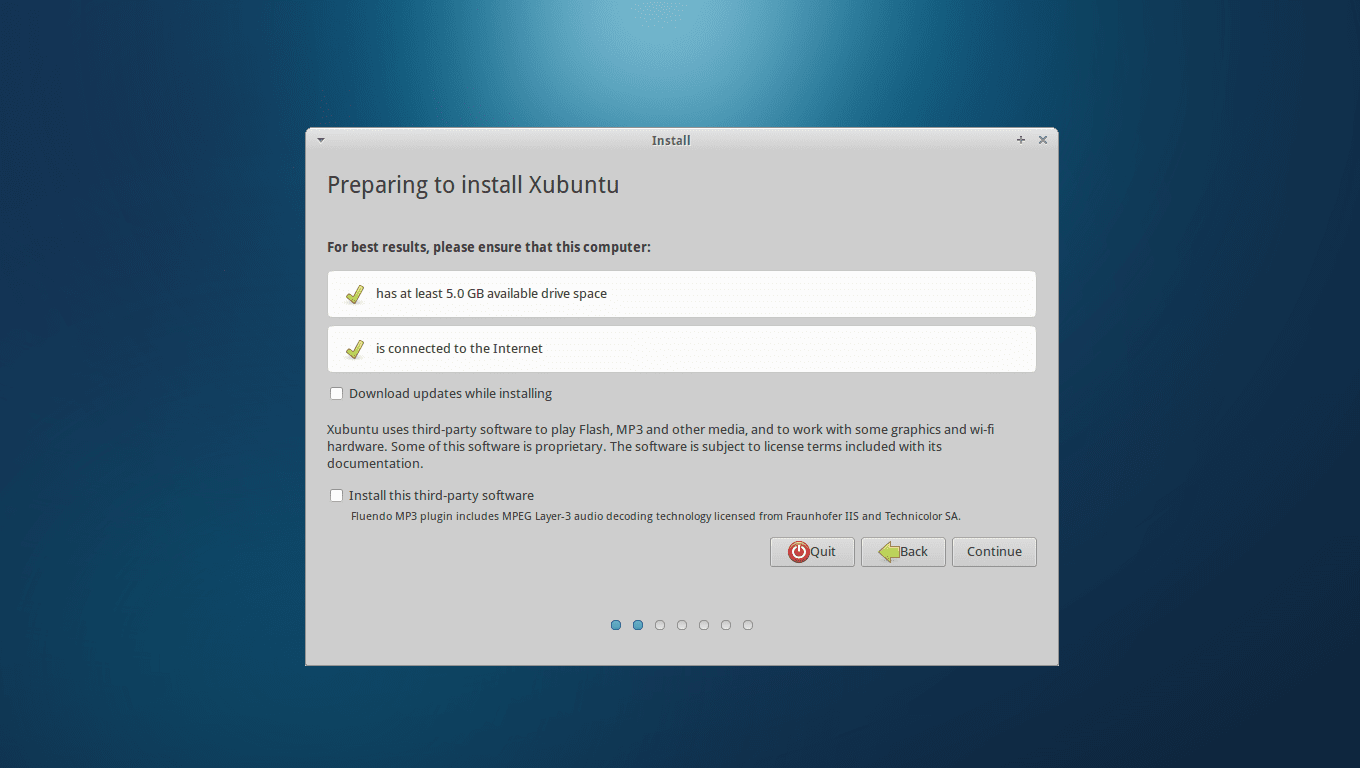
- Click on "Continue".
- Next Image will something like shown below :
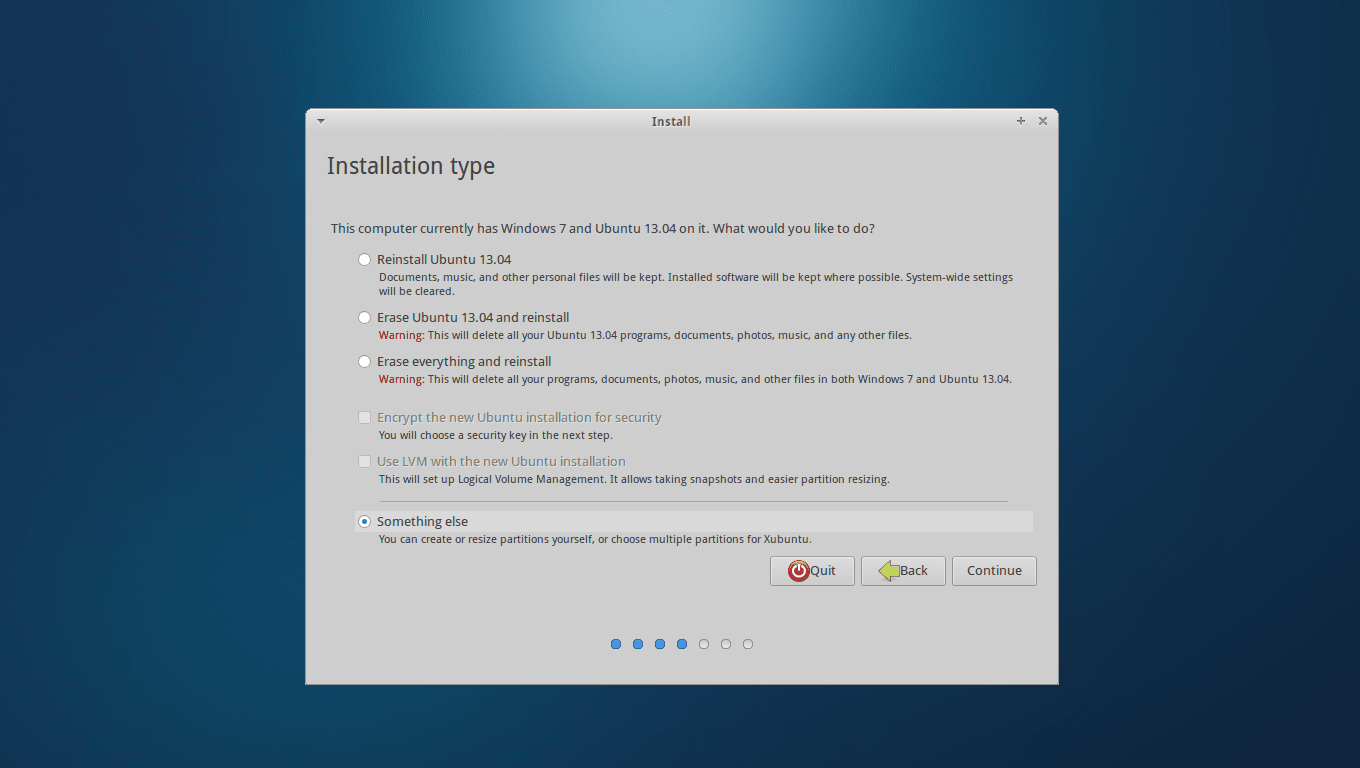
As you can see many other options are available, you'll even have an option called "Install OS_NAme alongside Windows", don't click on it !
I repeat don't click on anyother option except "Something else"
- After clicking on "Something else", click on "Continue" & you'll see the partition table as shown below :
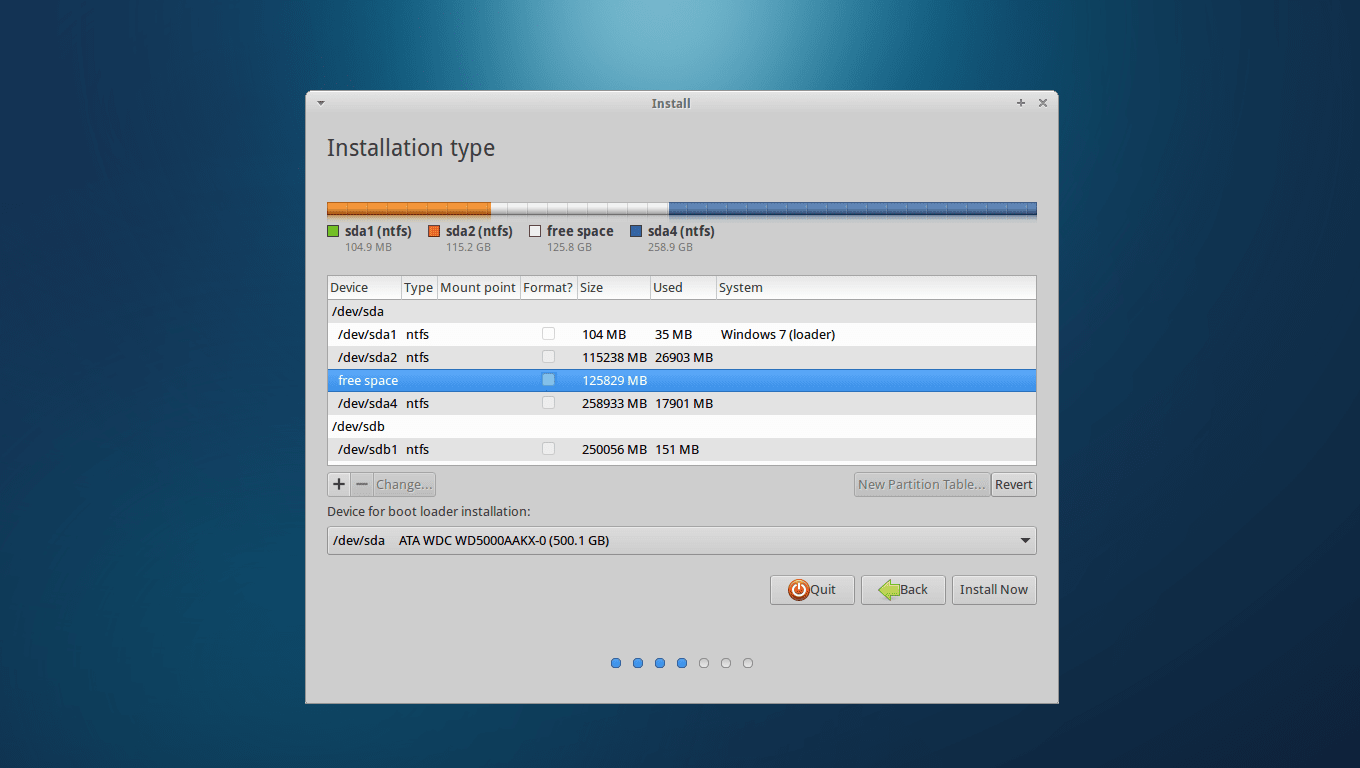
I have two hard-drives, so you can see in the table that there are two hard-drives shown naming /dev/sda & /dev/sdb.
Note : You have to install Linux OS in same hard-drive in which Windows OS is installed without touching any part of the Windows main drive.
I have created a free space, by deleting one partition in my first drive where Windows 7 is installed.So, you don't have free space, you gotta do same.
Just take precaution that you dont delete Windows partition.
- Now we will create partitions manually & allot the size to it. You see the "+" button below the table ? Click on it.

- In Mount point, click on drop down menu & select /boot & allot it 250 MB
- Now again click on drop down menu & select / (root) & allot it around 30,000 MB
- IMPORTANT : Click on Drop-down menu of "Use As" & click on "SWAP AREA" & allot the size equal to 2xtimes your computer RAM size. eg : If my PC has 2GB RAM means SWAP AREA = 4096 MB.
- Now, again click on drop down menu of "Mount point" & select /Home : Allot it maximum size. 70-80 GB would be good.
All the screenshots of above process are sequentially uploaded below, Check it out :
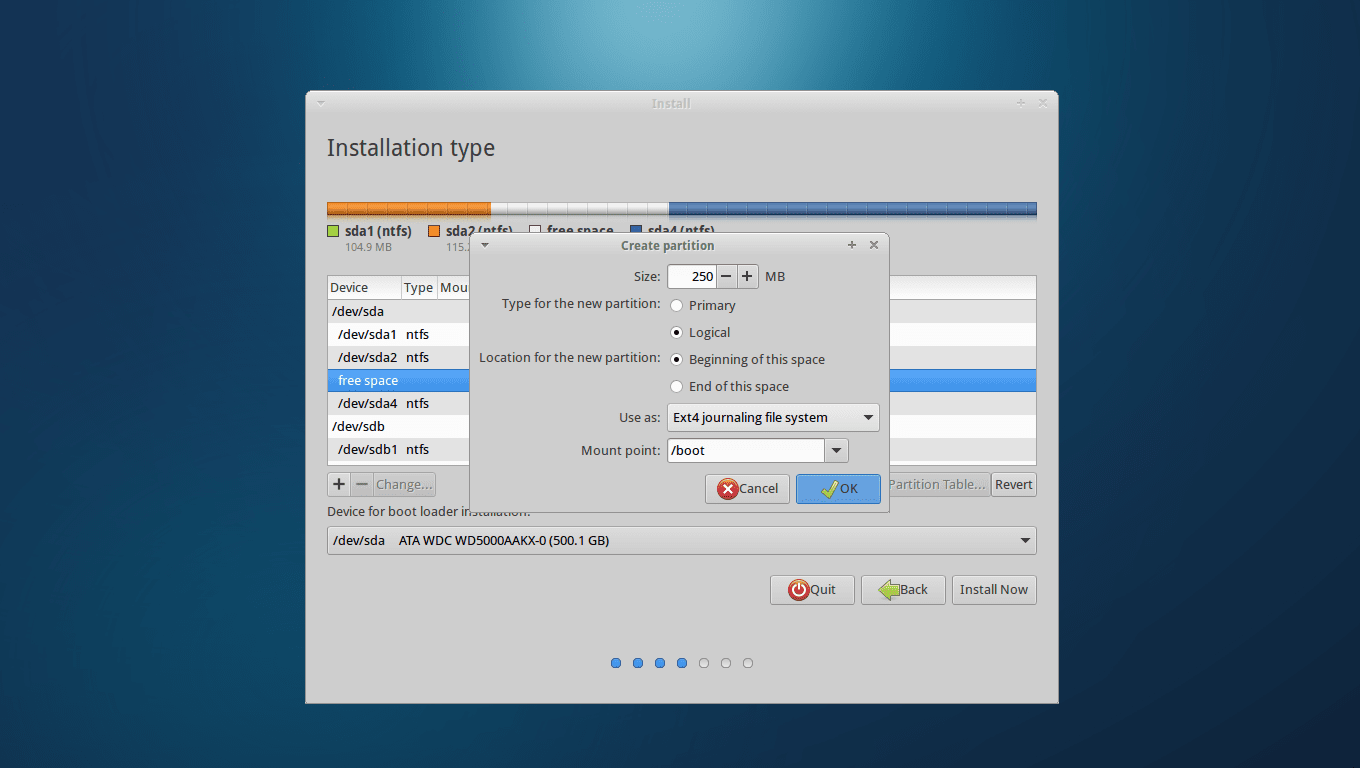
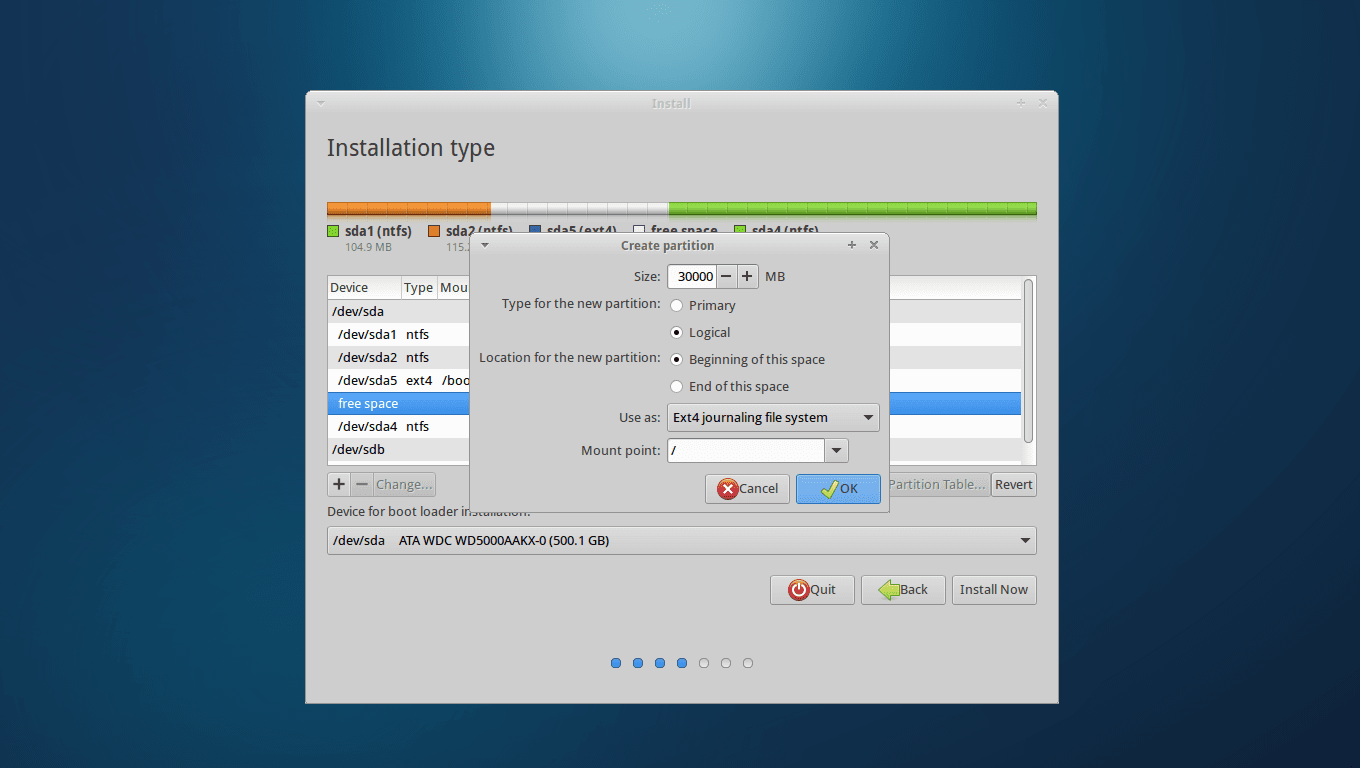
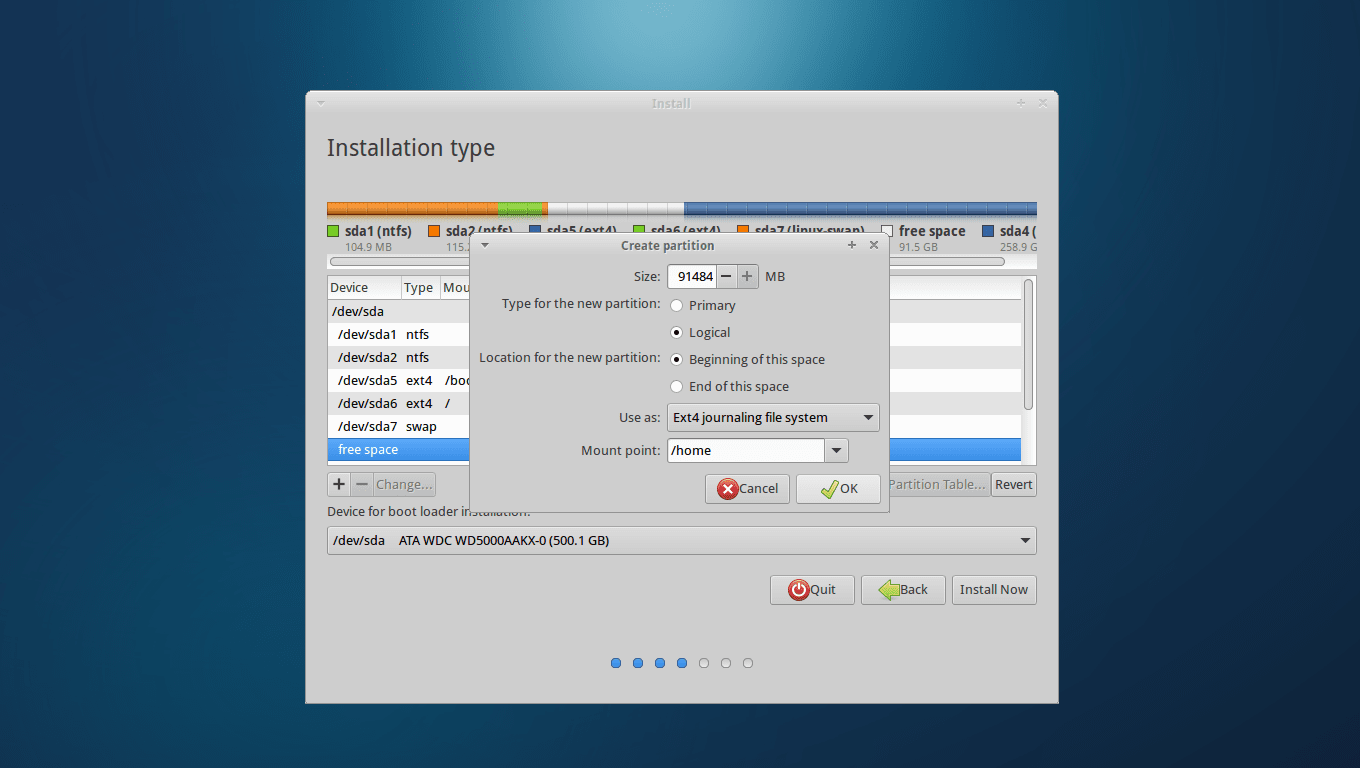
After manually partitioning, the Partition table should look something like this (the size allocated may vary, but the required partition i.e root,/boot,/home & SWAP AREA should be there)
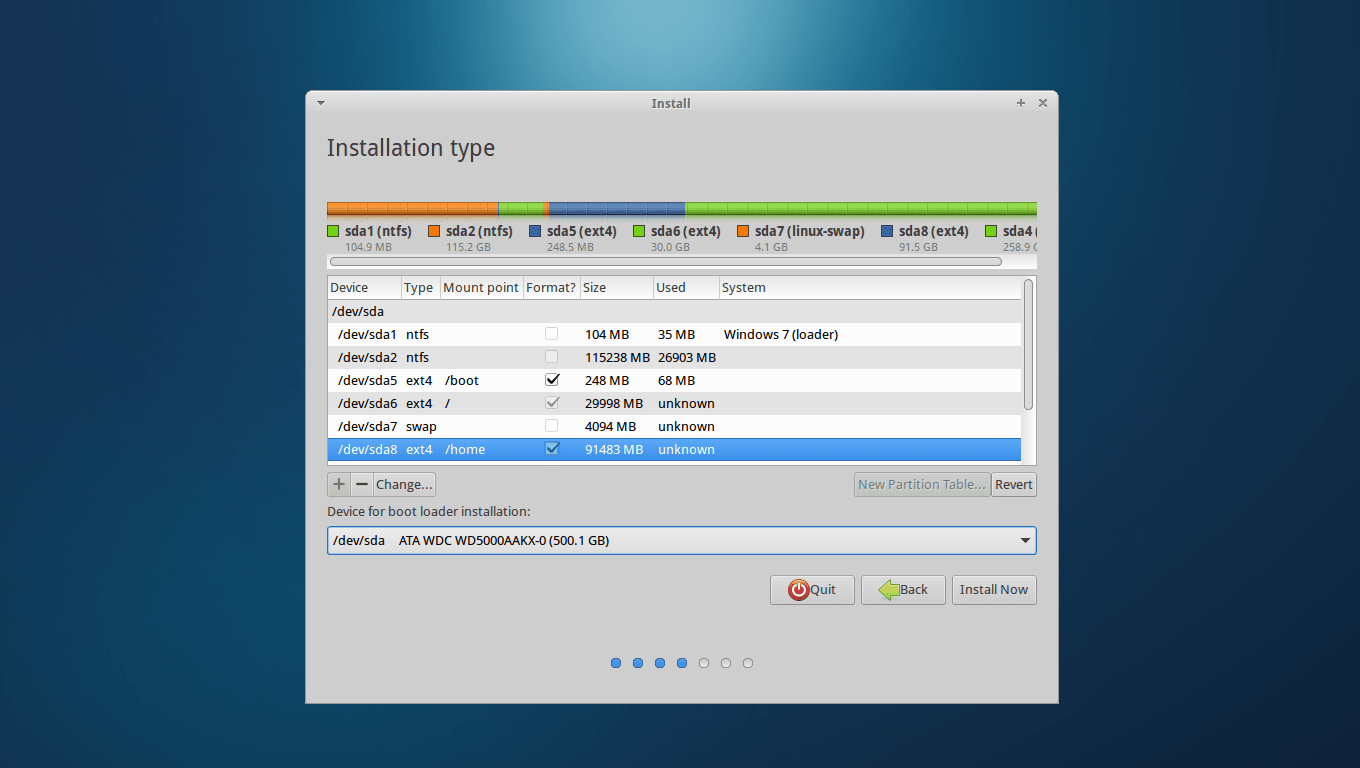
Do check the below option under table :
"Device for boot loader installation " : this should be the location of where Windows exist & partition you just made.
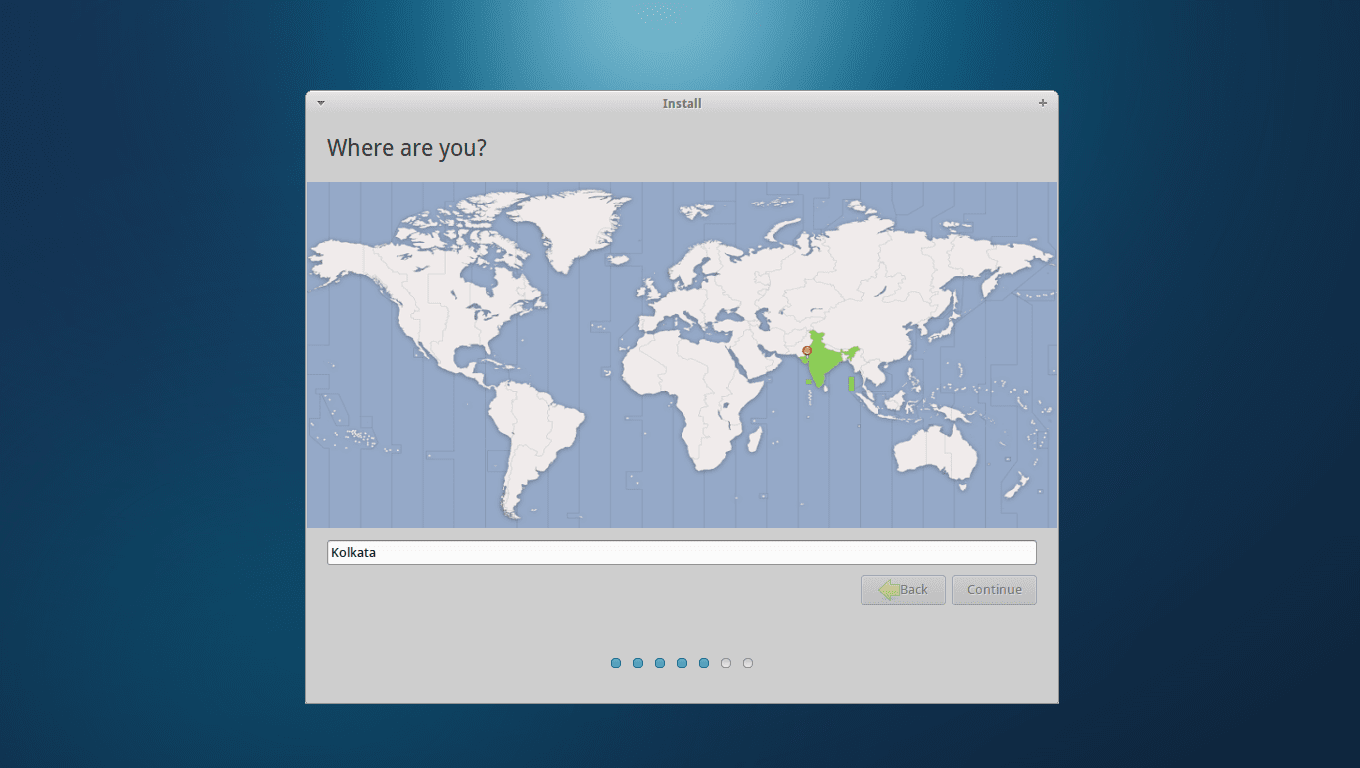
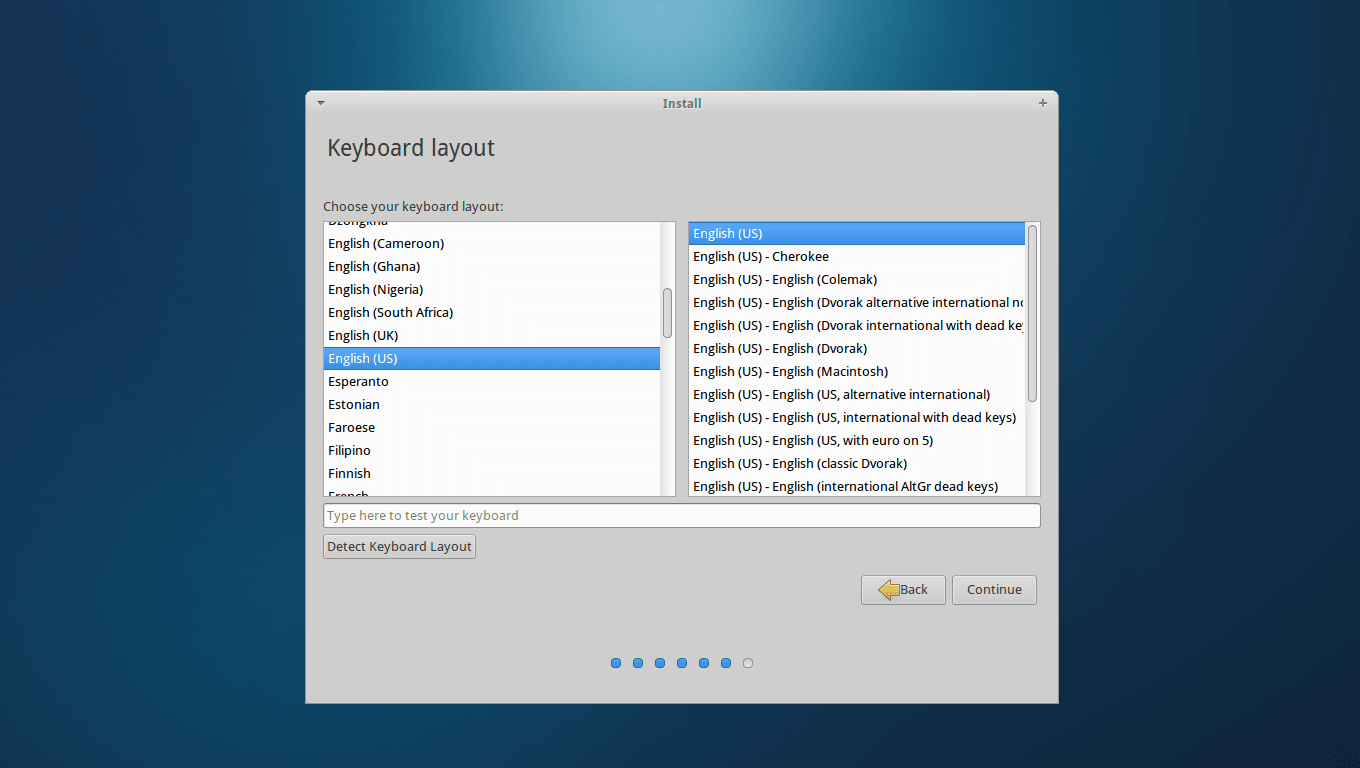
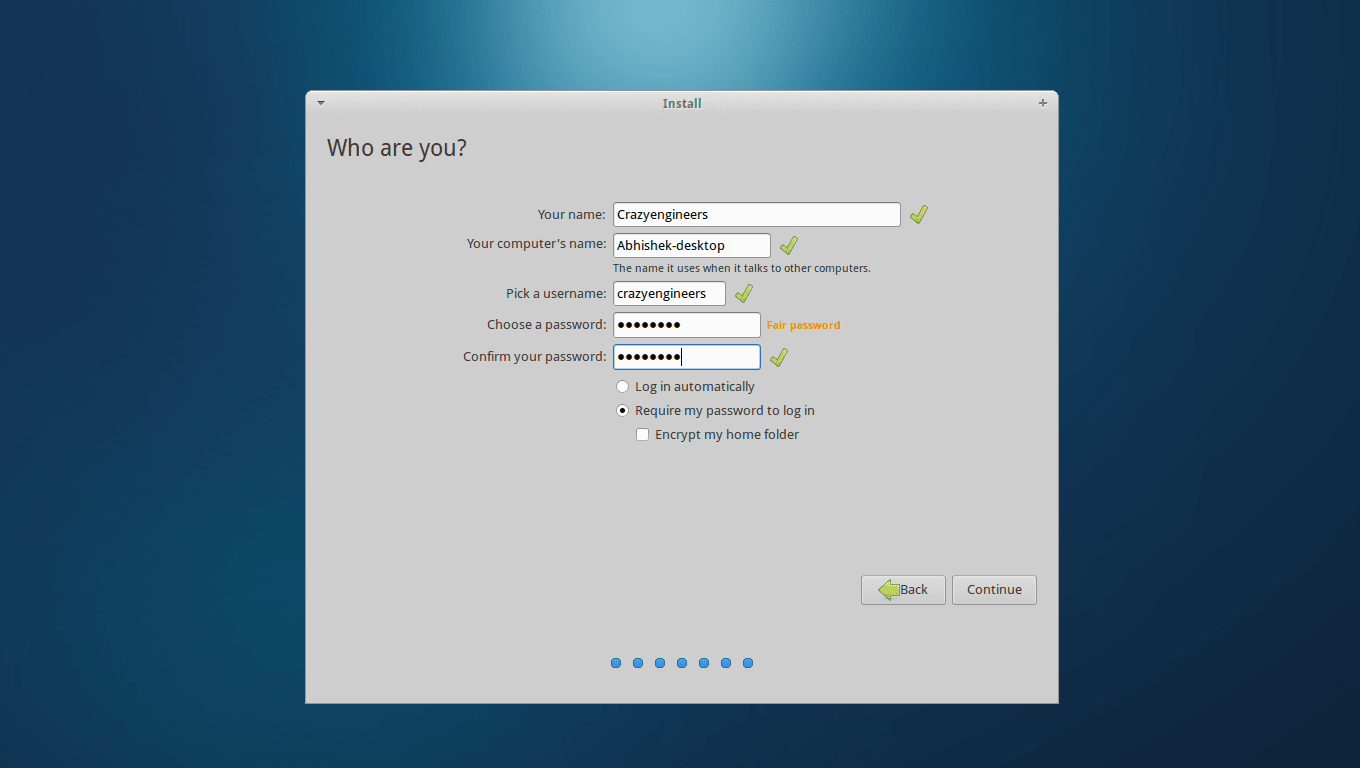
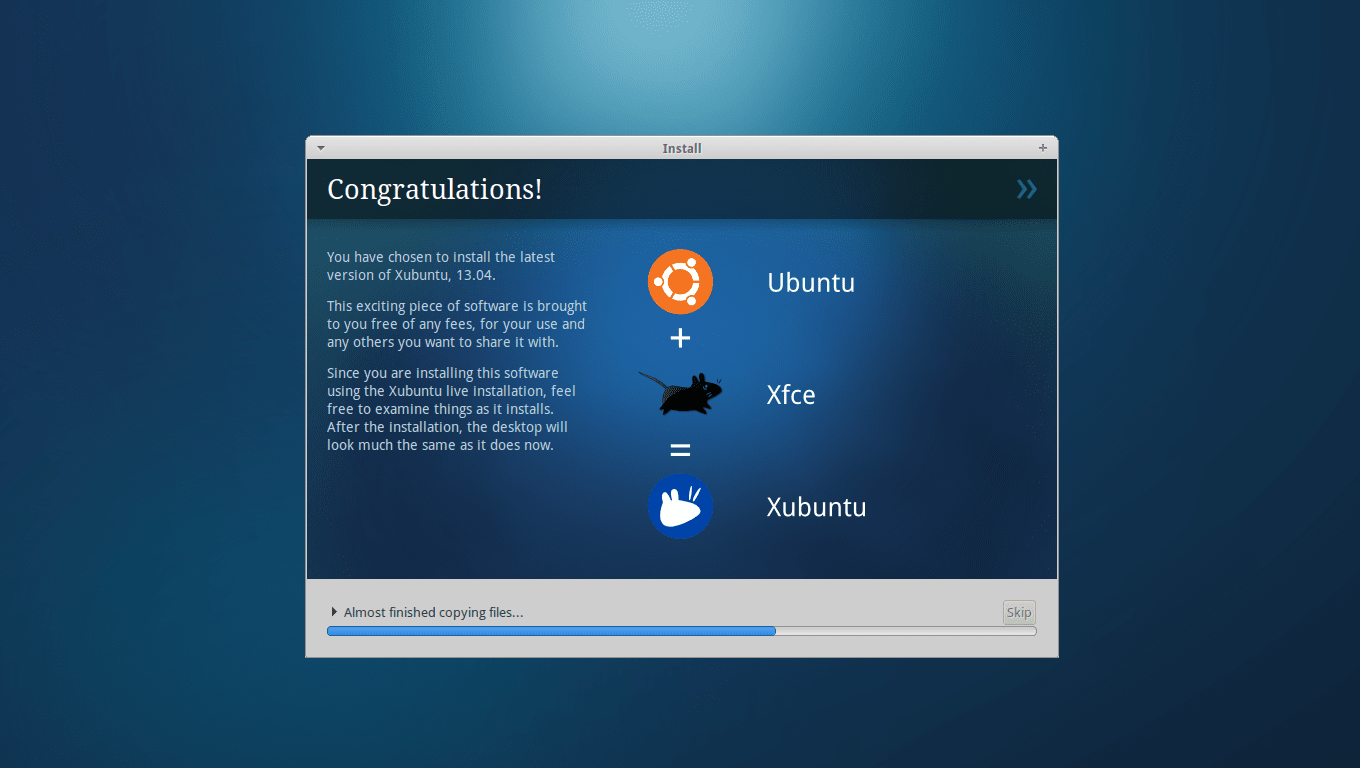
- CLick on "Install Now" , select location, click next, select keyboard layout : shown in images below
Continuing in next thread : as only 10 images per post is allowed ......

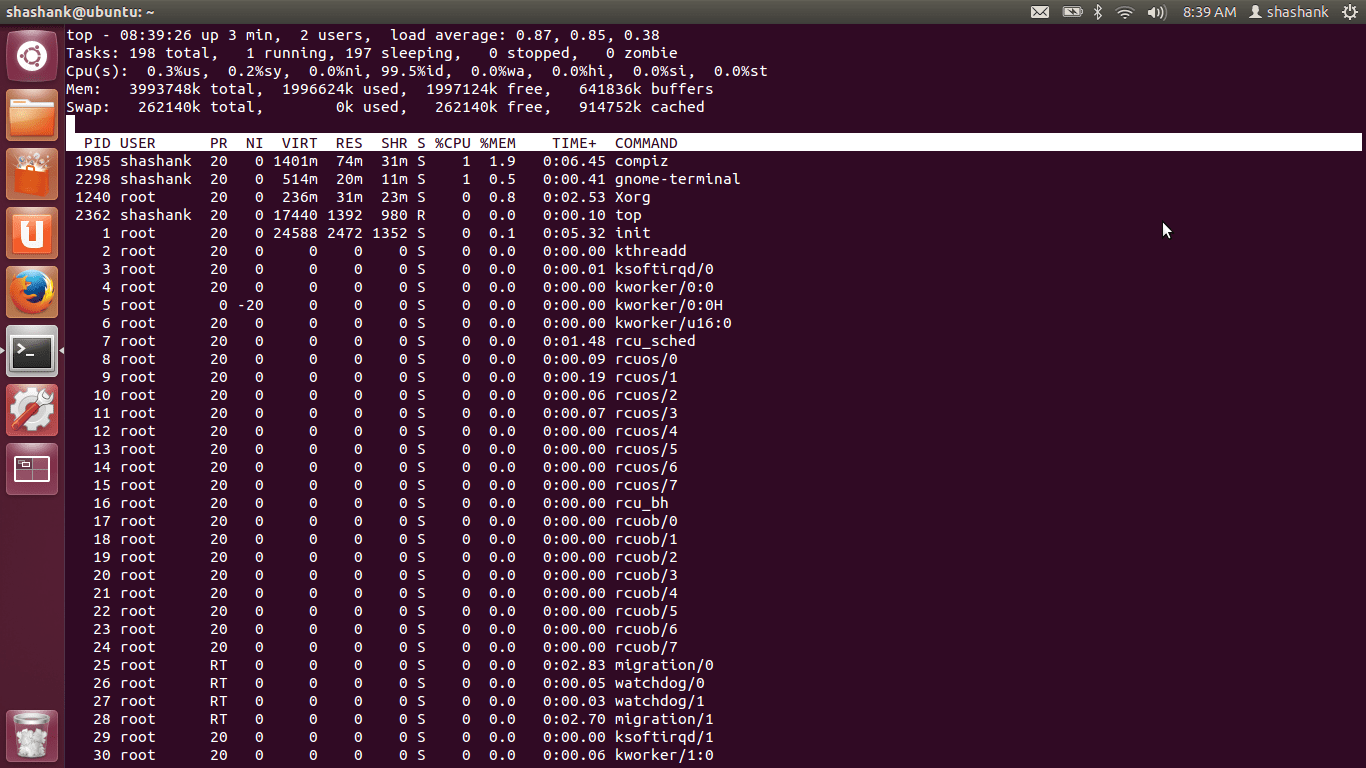
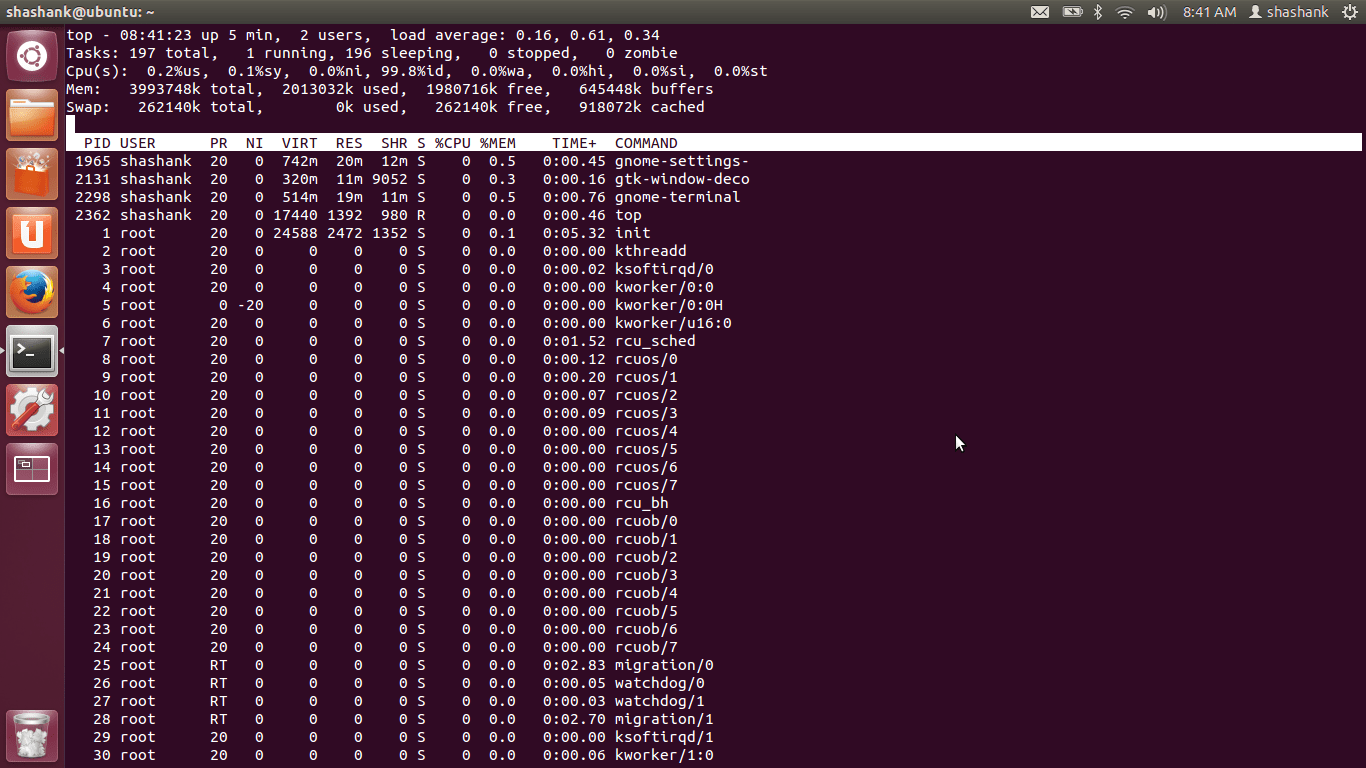 Here are the screenshots of "top" (the list was changing, looked like a task manager equivalent to me, hence I took 2 screenshots at different instants).